İçeriğe atla
Dijiyon site yönetim yazılımı logosu

4 ekran

Procurement

Getting a job done is one flow: a work order is opened, assigned to staff or a firm, a quote is taken from a supplier and materials are ordered.

  • Follow the same job in three views: list, board and calendar
  • Open jobs, overdue, urgent and average resolution time in one strip
  • Request a quote from the suppliers you choose with a single form
Dijiyon Procurement screen

Ekranlar

This is how Procurement looks in the panel

Every image below is taken from Dijiyon's real interface; none of them is a mock-up.

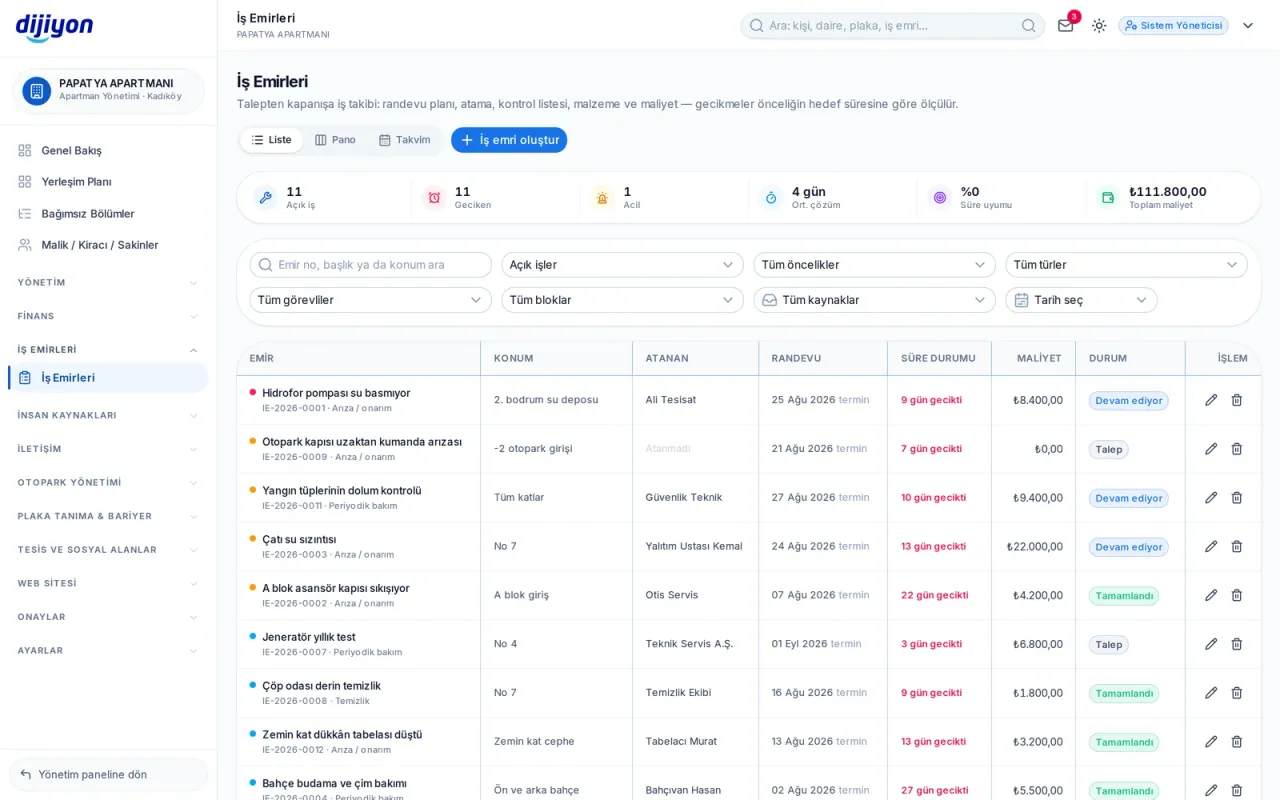
Procurement · List view — the full breakdown with filters

List view — the full breakdown with filters

All work orders in one table. Order number, subject, location, assignee, priority and deadline together; overdue jobs read in red. The strip at the top shows the number of open jobs, overdue and urgent ones, average resolution time, adherence to time and total cost, live.

  • Search by order number, title, location and assignee
  • Filters by priority, type, block, source and date range
  • The priority sets the target response time
  • Letterheaded Excel and PDF output
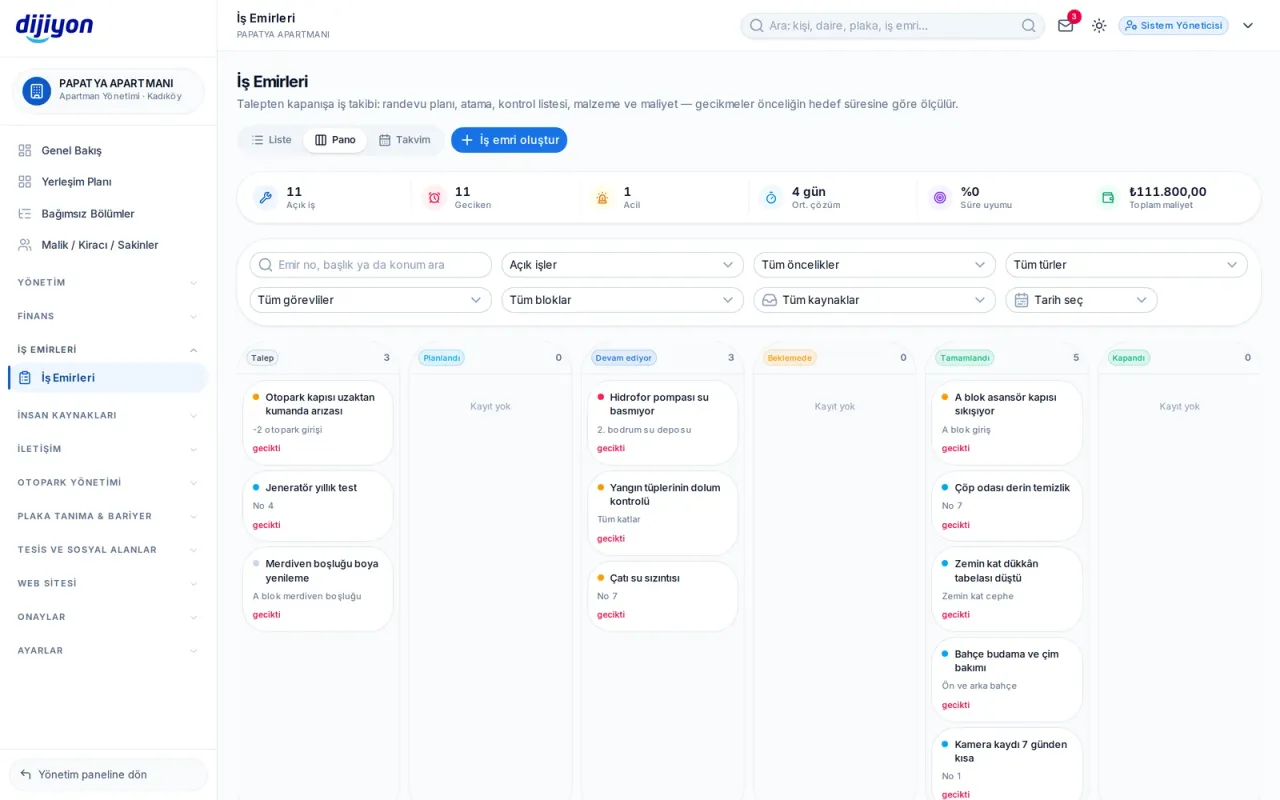
Procurement · Board view — what stage the job is at

Board view — what stage the job is at

Jobs are laid out in status columns: request, planned, in progress, on hold, completed, closed. You see at a glance how many jobs are at each stage and move them on by dragging the card.

  • A six-stage flow: from request to closing
  • Job count in the column headers
  • Priority colour and overdue warning on the card
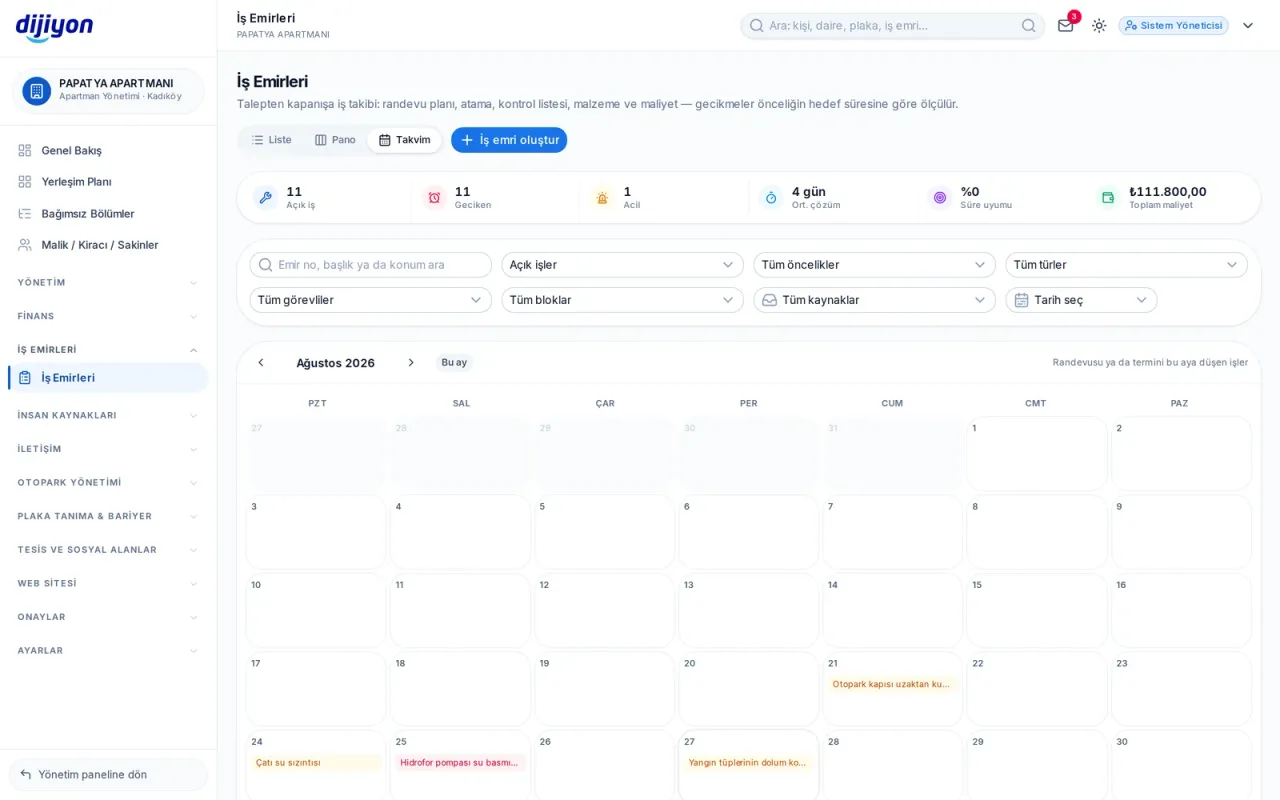
Procurement · Calendar view — appointments and deadline plan

Calendar view — appointments and deadline plan

Planned jobs land on the calendar day by day. How many jobs on which day, which member of staff will be where; you plan without clashes.

  • Placement by planned start time
  • Warning for jobs with an approaching deadline
  • Filtering by staff and type
Closing a work order — it doesn't close without a photo

Closing a work order — it doesn't close without a photo

A job doesn't close on its own: the completion window asks for a result note, the actual time taken and the cost. If the work order requires a number of photographs, the closing is not completed until that many are uploaded.

  • Documenting a completed job with up to 10 photographs
  • Task and item checklist
  • Material items: quantity, unit, unit price, provider
  • Notes and movement history on separate tabs
  • Repeating work orders for periodic maintenance
Find a supplier — request quotes from the pool

Find a supplier — request quotes from the pool

You search the shared supplier pool by service type, province and district. You select several firms and request quotes with one form; each firm receives its own link and can quote without logging in.

  • Filters by category, province, district and minimum years of experience
  • Bulk quote request through multiple selection
  • Amount, VAT status, duration and validity on incoming quotes
  • Accepting or rejecting a quote and closing the request
  • Counters for total requests, open requests, quotes received and no replies
Your own suppliers

Your own suppliers

You add the firms you work with to your own list. The form used is the same as the supplier application form on the management website — no separate list is kept in two places; what is added here goes straight into the list and does not wait for approval.

  • Company details, category and contact person
  • Service audience: managements, residents or both
  • Badges for listed, awaiting approval and rejected
Wholesale market — shopping for the management

Wholesale market — shopping for the management

The basket is filled from the cleaning, paper, lighting, garden and technical materials categories; payment is by card or bank transfer, and the order is tracked until it is delivered.

  • Campaign price, VAT and grand total breakdown in the basket
  • The delivery address arrives filled in from the management record
  • Preparing, in transit, delivered and cancelled statuses
  • Courier firm and tracking number
  • Return request per item

Start free

Open these screens on your own property

Open a free account; setup, data migration and training are on us.

Call us

Kapsam

The screens under Procurement

Every line is a real screen you can open and use in the panel.

Work orders

Fault and maintenance work orders

Find a supplier

Search for suppliers by service type and request quotes

New supplier

Add your own supplier to your list

Wholesale market

A wholesale marketplace for your management

Start free

See the Procurement screens on your own property

Open a free account to see more; setup, data migration and training are on us.

Call us